How Do I Upload And Deliver Media Directly On Tonomo?
Last updated: October 9, 2026
Overview
Direct Upload is Tonomo's built-in alternative to Dropbox. It lets you upload finished deliverables straight into Tonomo's own storage system and deliver them to your customers without ever leaving the platform. You can also use it alongside Dropbox, importing files from a linked Dropbox folder instead of uploading them manually.
Direct Upload is currently in beta. If you'd like it enabled on your portal, reach out to Tonomo Support.
Creating a Direct Upload for an Order
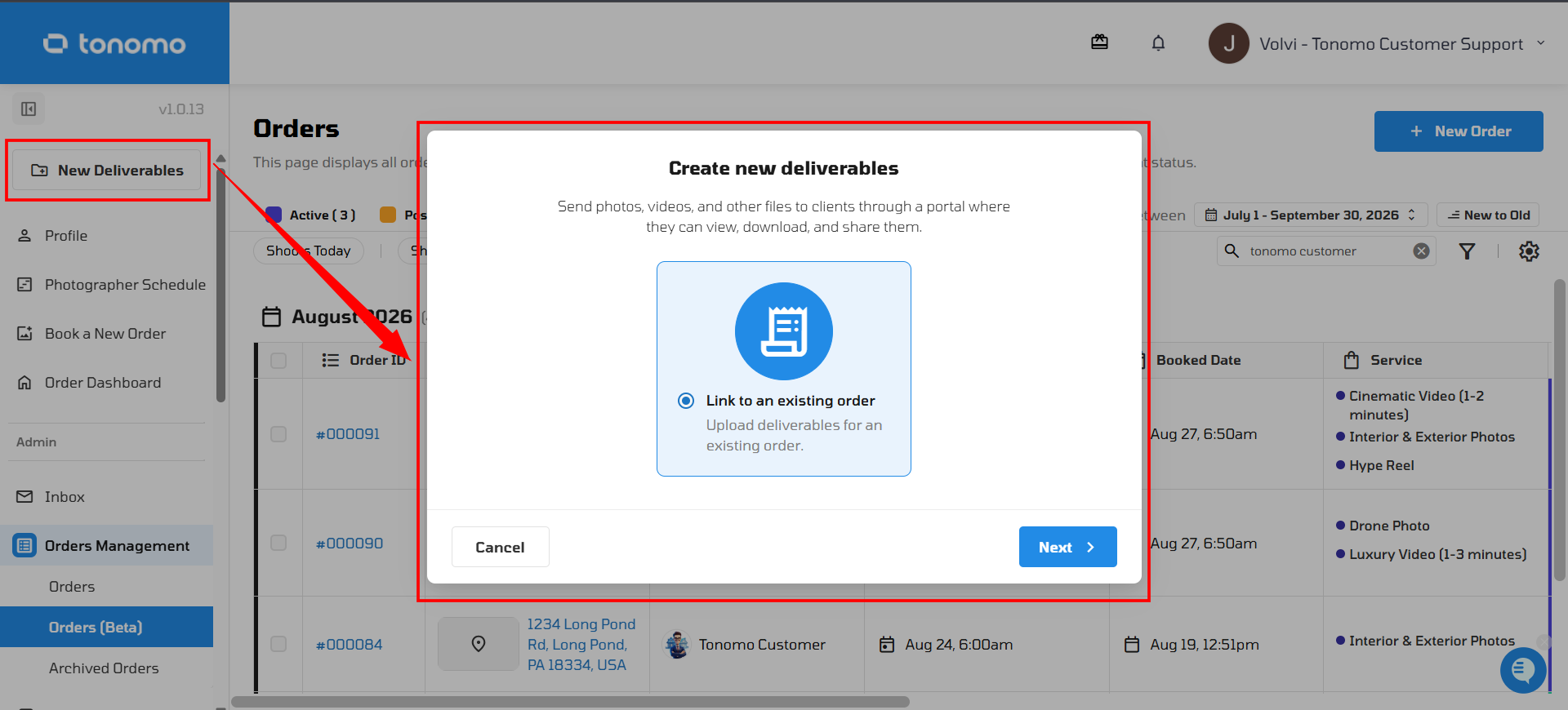
Click New Deliverables in the left-hand corner.
Click Link to Existing Order.
Type in the order's address, or search by Order ID.
Select the order and click Create.
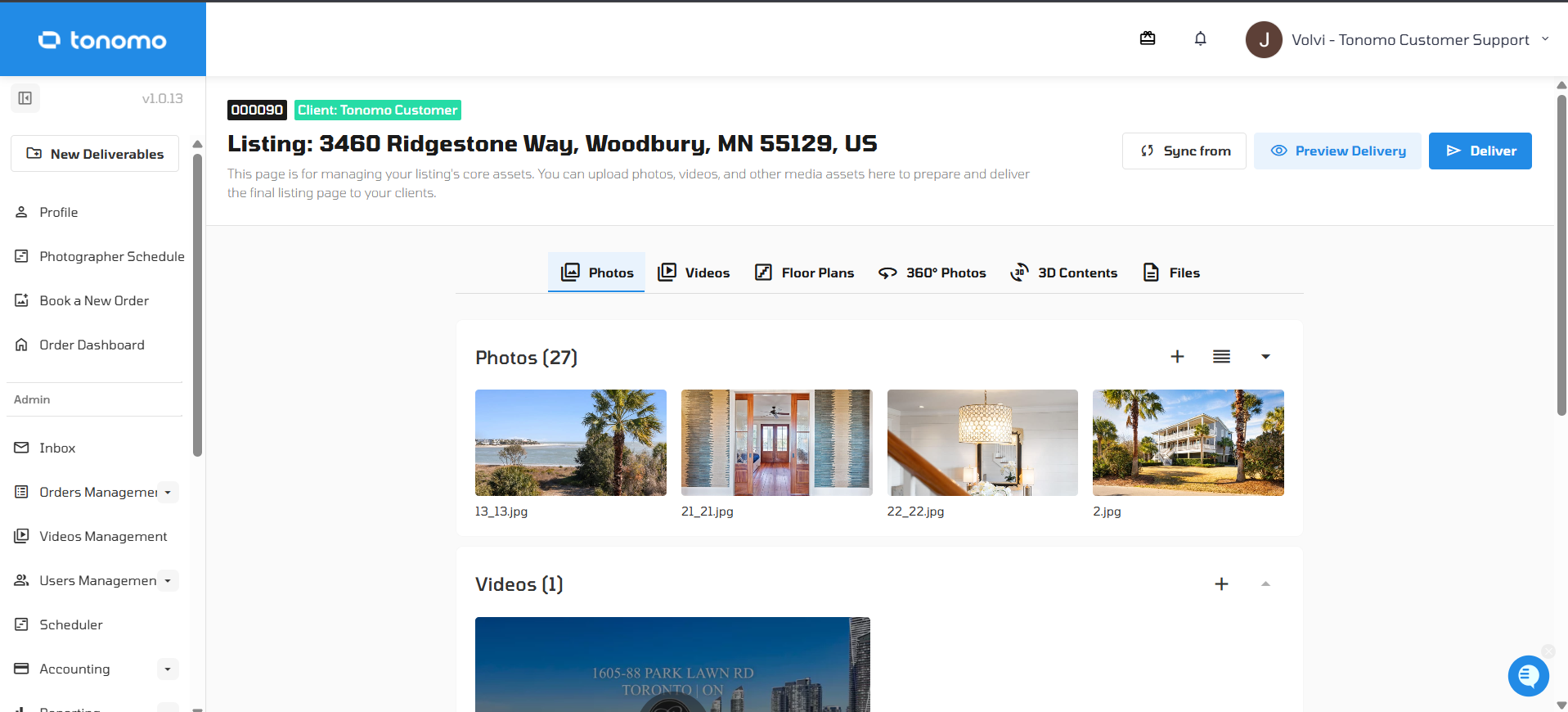
This takes you into the media upload area for that order.
Uploading Your Media
Drag and drop your files into the matching media section (photos, video, etc.), or click Upload to browse for files, then click Add Files.
You can upload full-resolution files — Tonomo automatically resizes them for web.
Rearranging and Renaming Files
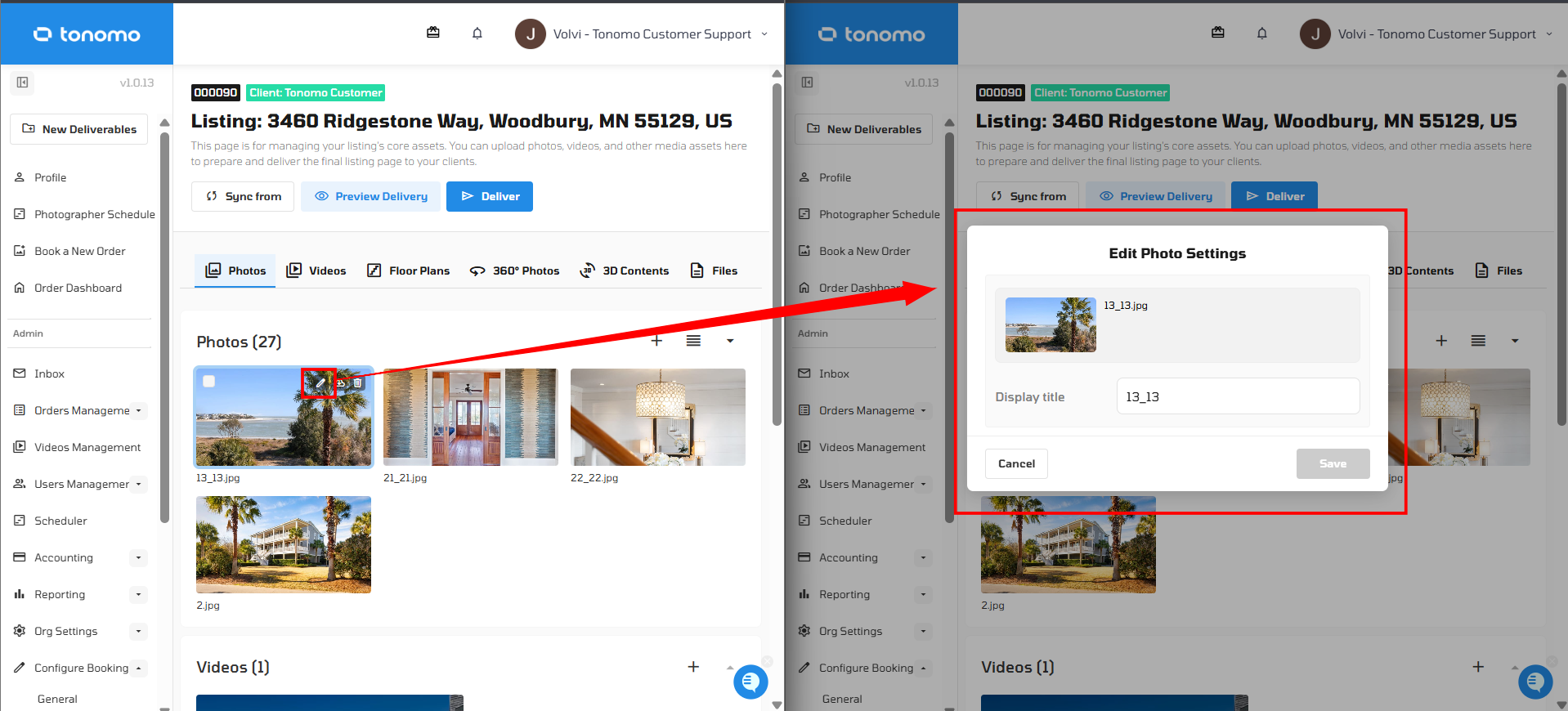
Once your files are uploaded, you can drag them into any order you like and rename any file directly in this view. Hover your mouse over a photo to reveal the edit, download, and delete icons.
Previewing and Delivering
Click Preview to see exactly what the delivery page will look like to your customer.
If everything looks good, click Deliver, then Next to send it straight to your customer.
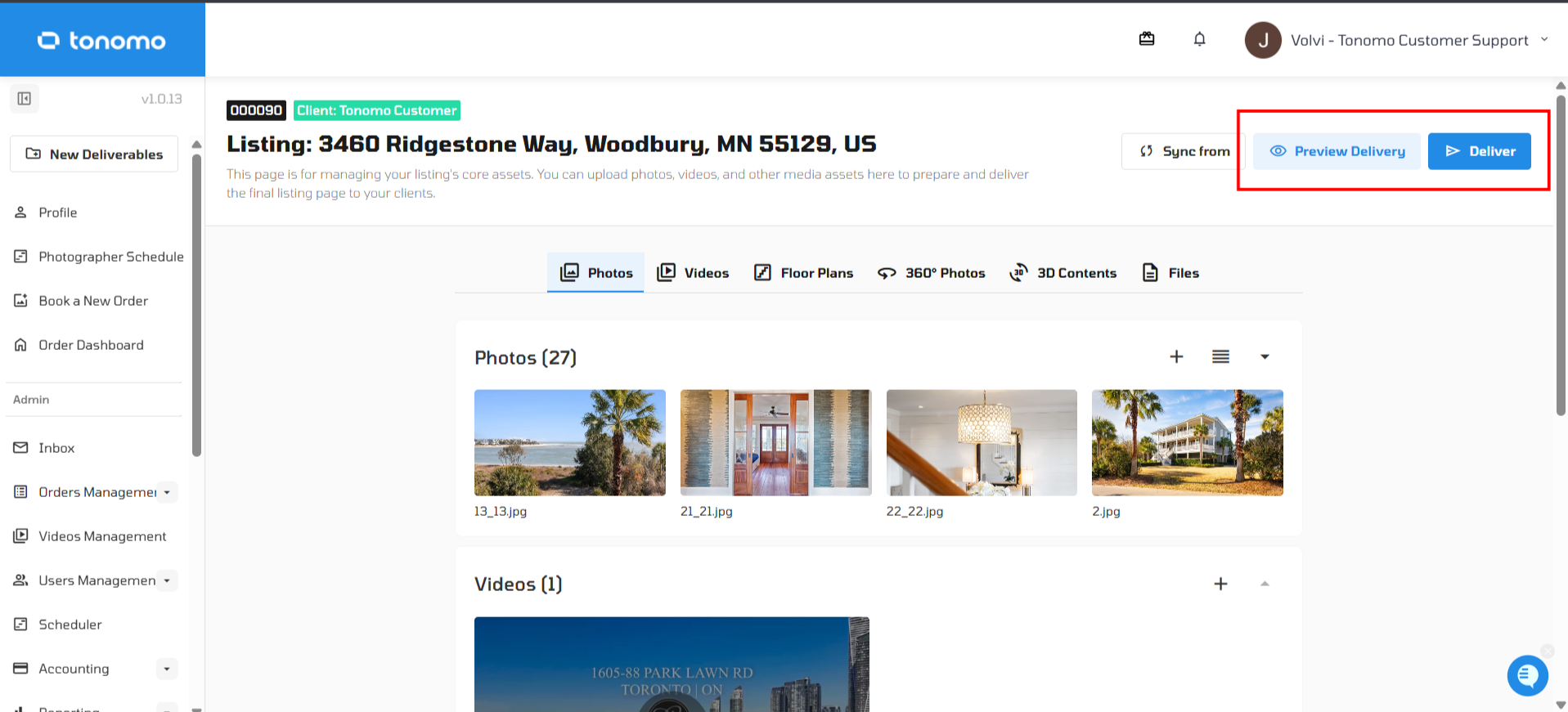
Not ready to deliver yet? That's not a problem — your files are already saved to the order. Just open the order later, go to Deliver, and mark it complete whenever you're ready to send it.
Importing Files from Dropbox
If you use both Dropbox and Direct Upload, you can import files straight from a linked Dropbox folder instead of uploading them manually. This requires your Dropbox integration to be connected.
Click New Deliverables and enter the order's address as usual.
If Tonomo detects a Dropbox folder linked to that address, it will show how many files are found and offer the option to import them.
Enable the import toggle and click Create.
Tonomo will pull in the photos and videos from that Dropbox folder directly into the order's Direct Upload and delivery page.
Adding More Files Later
If you need to add more photos or videos to an order after the initial import, you have two options:
Upload directly in Tonomo's upload system by dragging files in (or pasting a link), the same way as a standard Direct Upload.
Add the new files to your Dropbox folder, then in the Direct Upload area click the resync button and refresh — the new files will be pulled into Tonomo automatically.
360 Photos and Files Sections
Direct Upload also supports two additional file types, each with its own section:
360 Photos — kept separate from your regular photos. On the delivery page, customers get a dedicated 360 section where they can drag to look around the full 360-degree image.
Files — for other files, like PDFs. Customers can click Download to save these straight to their computer.
Accessing Files from Order Management
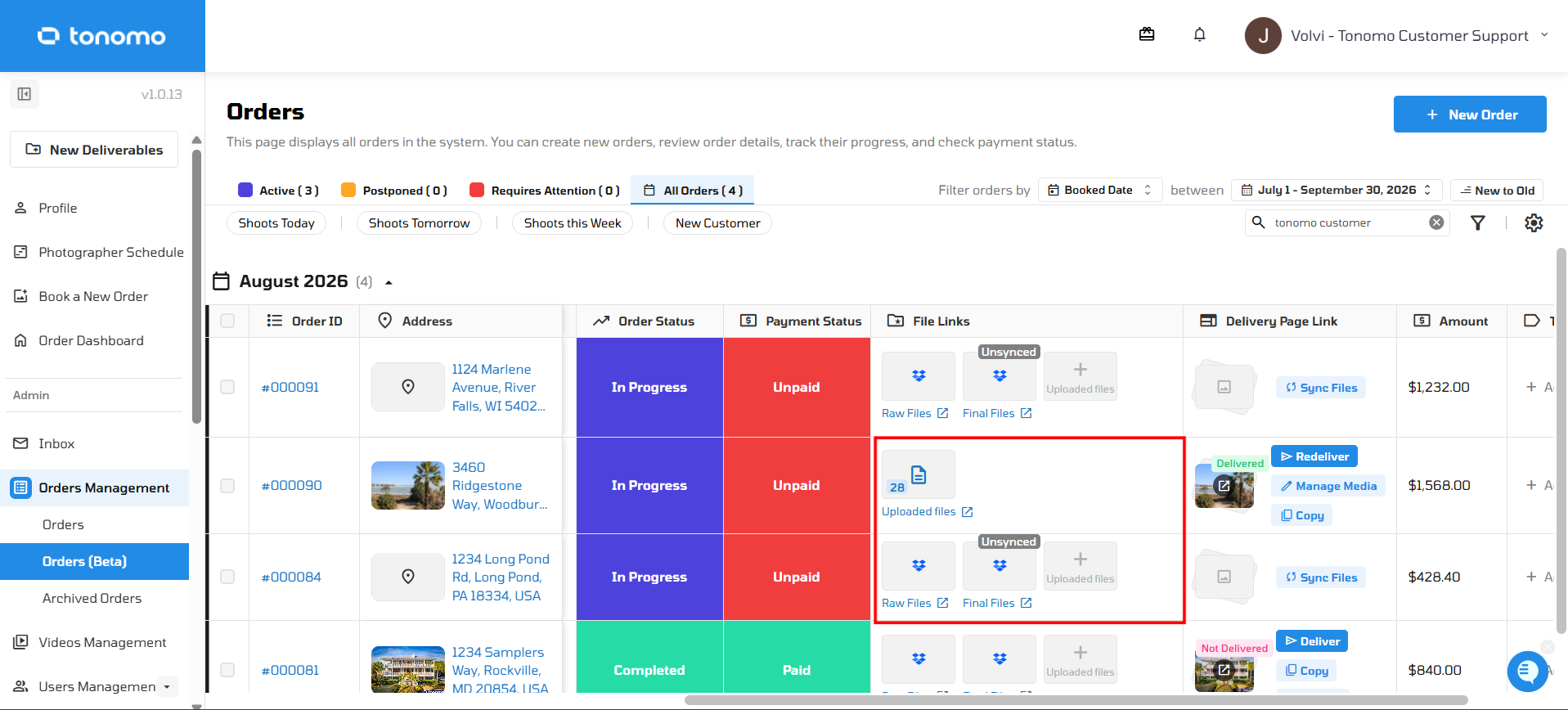
If you're using a mix of Dropbox and Direct Upload, the File Links column on the Order Management page now shows three links per order:
Link | What It Opens |
|---|---|
Raw Files | The Dropbox folder for raw files |
Final Files | The Dropbox folder for final files |
Uploaded Files | The Direct Upload area for that order, where you can re-upload or revise files |
Editing Deliverables After Creation
Open the order and go to Order Details.
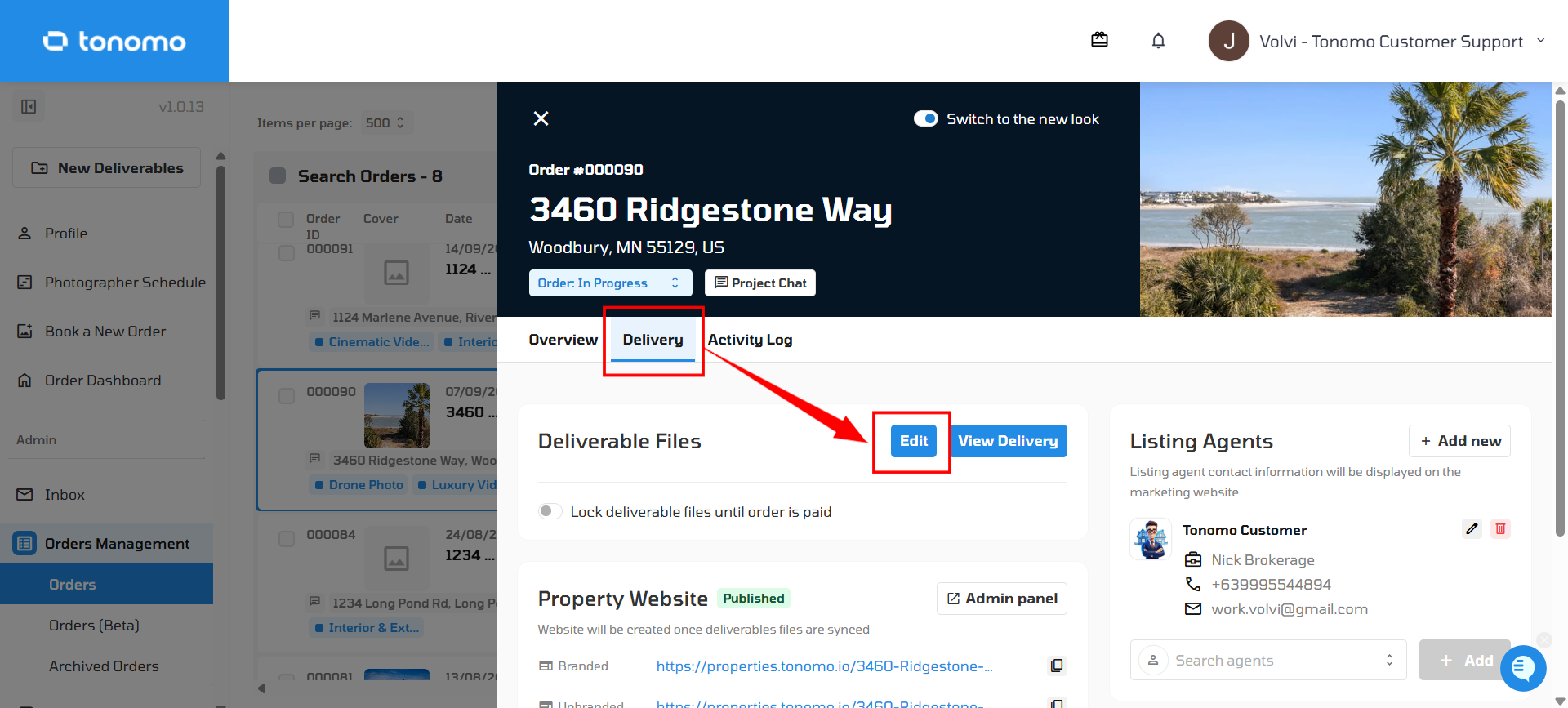
In the Delivery section, click Edit next to the deliverables entry.
This takes you back into the Direct Upload area for that order so you can make changes.