How Do I Flag An Urgent Order Using Escalation?
Last updated: October 5, 2026
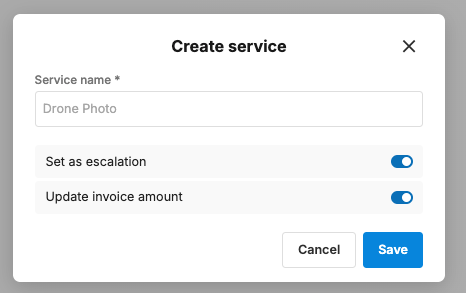
In Tonomo you can mark a service on an order as an escalation so the order stands out. Escalated orders are collected in the Requires Attention view of Orders (Beta), under Escalated, and the escalated service turns red. Use it to highlight urgent or important work so nobody misses it. Turn it on with Set as escalation when you edit the service in the order's Project Chat.
At a glance
Escalate a service on an order, and the whole order is then flagged.
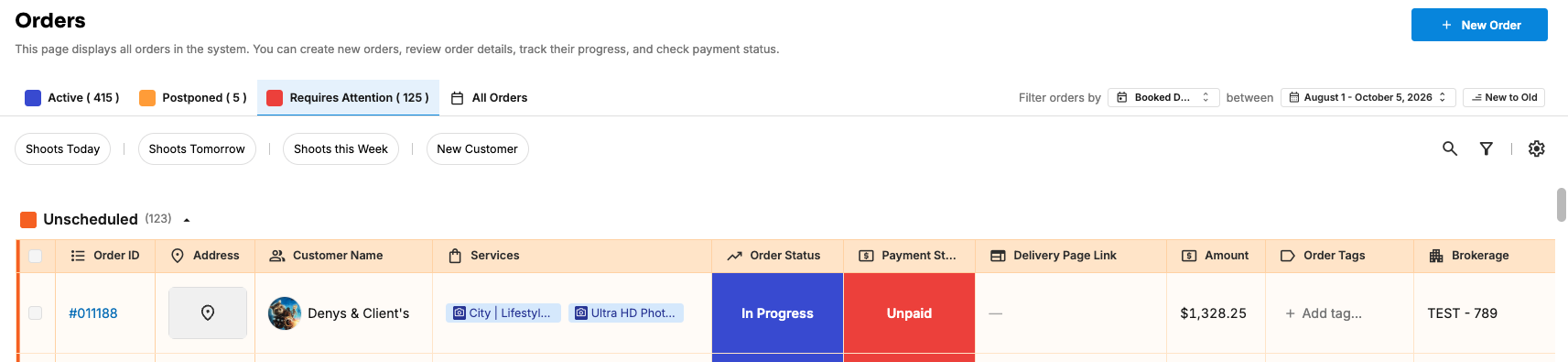
Escalated orders appear in Orders (Beta) > Requires Attention, under Escalated.
The escalated service turns red.
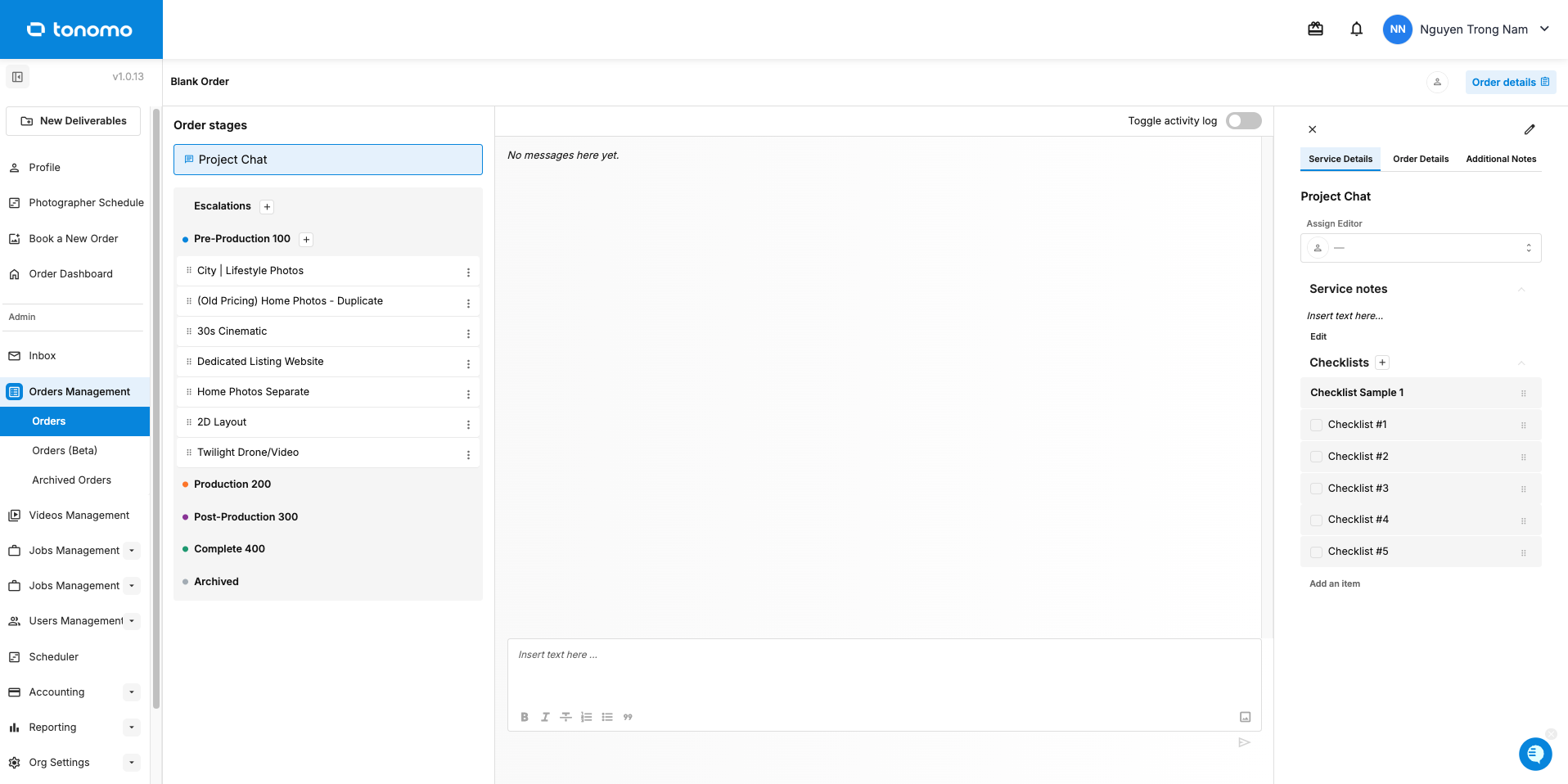
Turn it on in Project Chat: select the service, click the three dots, choose Edit, then Set as escalation.
This isn't the same as escalating a job in Jobs Management.
How do I escalate a service?
Go to Orders Management > Orders (Beta) and find the order.
Click its Services to open Project Chat.
Select the service you want to escalate.
Click the three dots and choose Edit.
Switch on Set as escalation and click Save.
The order now appears under Escalated in the Requires Attention view.
How do I remove an escalation?
Repeat the steps, switch off Set as escalation, and click Save. The order leaves the Escalated group.
Where do I see all urgent orders?
Open Orders (Beta) and click Requires Attention. It has two groups:
Escalated: orders with an escalated service
Unscheduled: orders with no shoot date yet
Check it every morning to catch anything that needs action.
Frequently asked questions
Is this the same as escalating a job? No. This flags a service on an order. Jobs have their own Escalate Job button with a message. See How Do I Escalate a Job?
Does escalating notify anyone? To get someone's attention, @mention them in Project Chat.
Can I escalate more than one service on an order? Yes. Each service has its own Set as escalation switch.
Related articles