Dropbox Integration
Last updated: June 16, 2026
This guide walks you through connecting your Dropbox account to Tonomo, understanding how it's used across the platform, and troubleshooting common issues.
What Dropbox Is Used For
Dropbox is Tonomo's primary file storage and delivery system. Once connected, Dropbox handles:
File storage for photo and video assets uploaded by your team
Client delivery through the Delivery page, where clients can view and download their files
Order media management within Order Management, where files are organized by services
Backup and archiving of property media for future reference
Without a properly connected Dropbox account, the Dropbox folder won't get created automatically, and you'll have no Delivery page.
Prerequisites
Before connecting Dropbox to Tonomo, please make sure you have:
An active Dropbox account
Admin access to that Dropbox account so you can grant Tonomo permission
Enough storage space to handle your expected file volume
Admin permission in your Tonomo portal so you can complete the integration
How to Connect Dropbox
Please follow these steps to connect your Dropbox account to Tonomo.
Step 1: Open Booking Configuration
Sign in to your Tonomo portal as an Admin
In the left sidebar, click Booking Configuration → General.
Look for the Dropbox section.
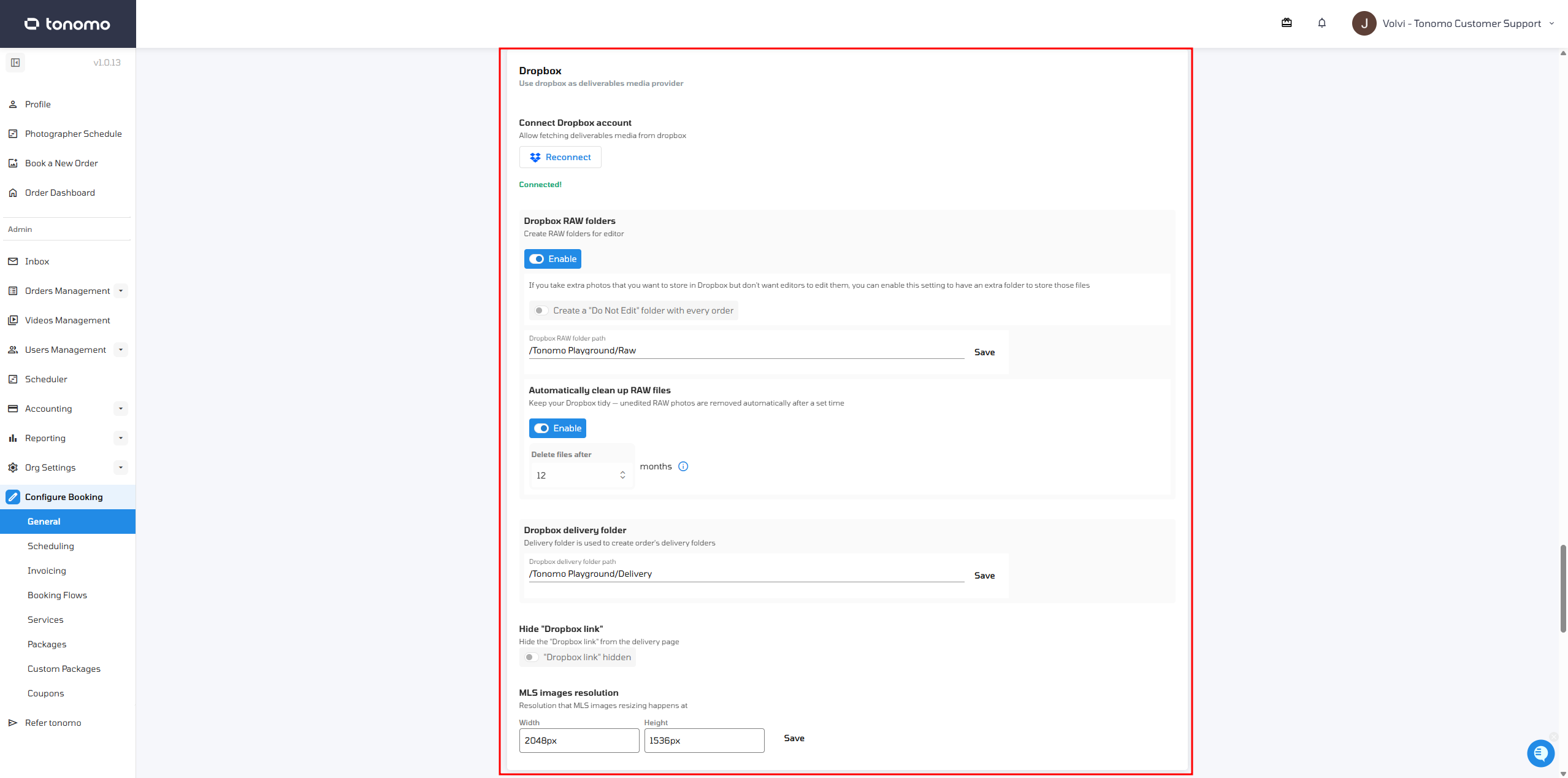
Step 2: Authorize Tonomo
Click Connect Dropbox
A new window will open asking you to sign in to Dropbox
Sign in with the Dropbox account you'd like to use for file storage
Review the permissions Tonomo is requesting:
Read and write files in your Dropbox
Create and manage folders
Share folders with team members
Click Allow to grant access
Step 3: Create Your Root Folder
After authorization, please create a root folder for all your file storage
We recommend naming this folder something easy to identify, like
Tonomo Filesor[Your Studio Name] MediaLink this to the respective sections in either Raw or Delivery.
All future order folders and delivery folders will live inside this root folder
Click Save to finalize the connection
Step 4: Verify the Connection
Once saved, the integration status should show Connected with the connected Dropbox account email
Open Order Management or Delivery and confirm that files load properly
If you see any errors, please see the Troubleshooting section below
Folder Structure
When Dropbox is connected, Tonomo automatically organizes your files like this:
[Your Root Folder] /
├── Raw Files Folder /
    ├── Photographer Name /
    │   ├── Scheduled Date /
    │   │   ├── Property Address /
    │   │   │    ├── Services (Photos)
    │   │   │    ├── Services (Videos)
    │   │   │    ├── Services (3D Tours)
    │   │   │    ├── ...
└── Delivery Files Folder /
    ├── Client Name /
    │   └── Property Address /
    │   │   │    ├── Services (Photos)
    │   │   │    ├── Services (Videos)
    │   │   │    ├── Services (3D Tours)
    │   │   │    ├── ...
Please do not manually rename or move these folders inside Dropbox. Doing so can break the link between Tonomo and your files, and the Delivery page may stop working for affected orders.
Raw folders will only be created if the order has a calendar event.
Permissions and Sharing
Single Account vs Shared Account
Most studios use a single shared Dropbox login (for example, admin@yourcompany.com) so all team members access the same file system through Tonomo. This is the simplest setup and avoids permission conflicts.
If your team members need direct Dropbox access (outside of Tonomo), you have two options:
Option A: Share access from the admin account
Sign in to Dropbox using the admin account that's connected to Tonomo
Go to the root folder (e.g.,
Tonomo Files) and click ShareAdd the email addresses of team members you'd like to grant access to
Set their permission level to "Can Edit"
Click Share
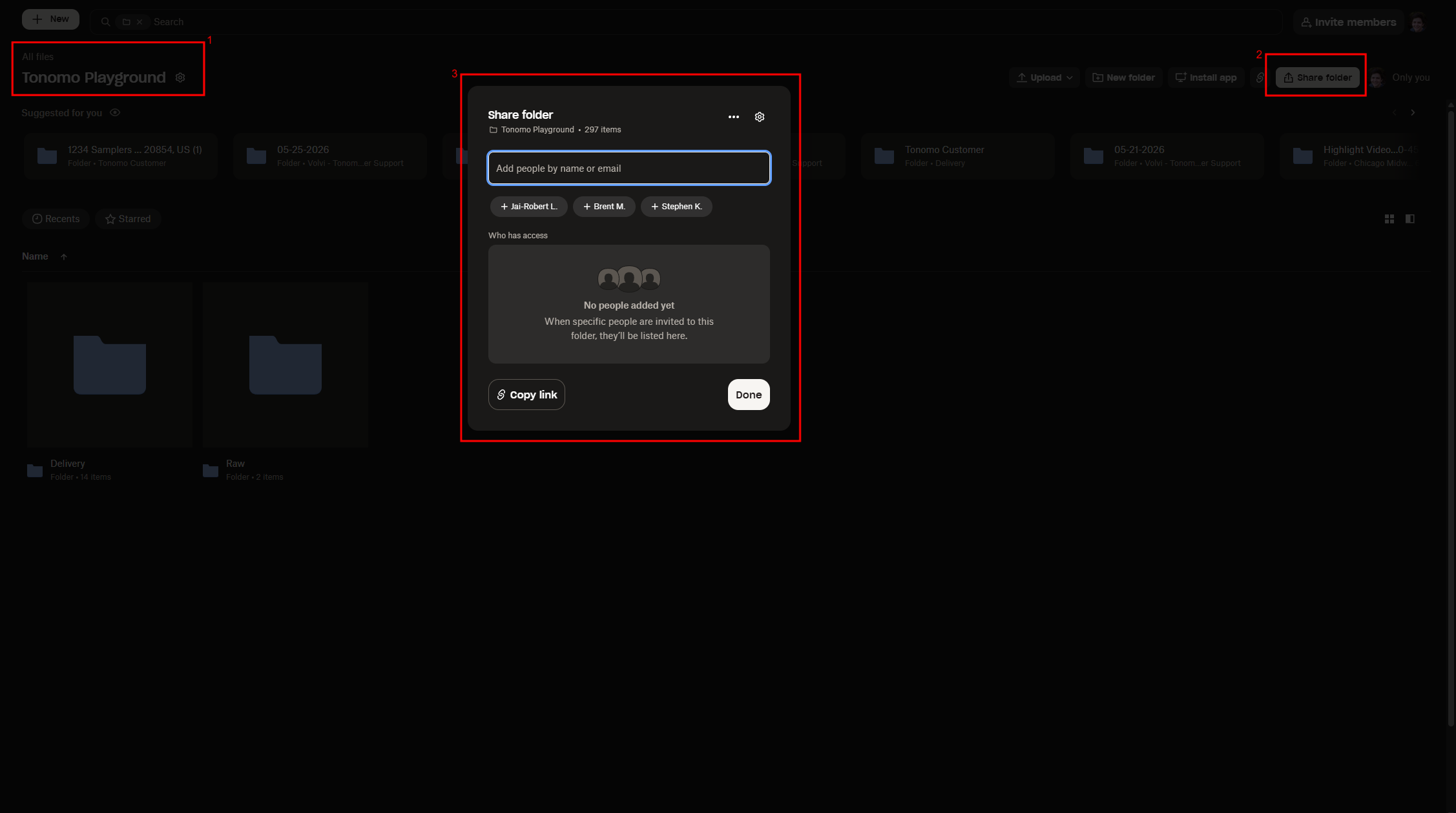
Option B: Use a Dropbox Business team plan
If you have Dropbox Business, you can add team members directly to the account, and they'll automatically have access to all team folders. Please see Dropbox's documentation on adding team members for details.
Permission Issues
If team members are seeing "You don't have access to this folder" when trying to access files:
Confirm they're signed in with the correct Dropbox account
Check that they were added to the shared folder (not just the email)
If the issue persists, the simplest workaround is to use the shared admin login for Tonomo access
Changing Dropbox Accounts
If you need to disconnect Dropbox or switch to a different Dropbox account:
Go to Dropbox and log in to the account you want to connect
Go to Portal, Configure Booking → General → Dropbox Section
Click Reconnect Dropbox button
⚠ Important Warning: Changing your Dropbox account won't break your existing Delivery pages, but it will have a few consequences:
Your clients won't be able to download the full-size images
You won't be able to resync the folder unless you recreate it
The Dropbox folders for your In Progress and Pending orders will stop working, so you'll need to recreate those manually
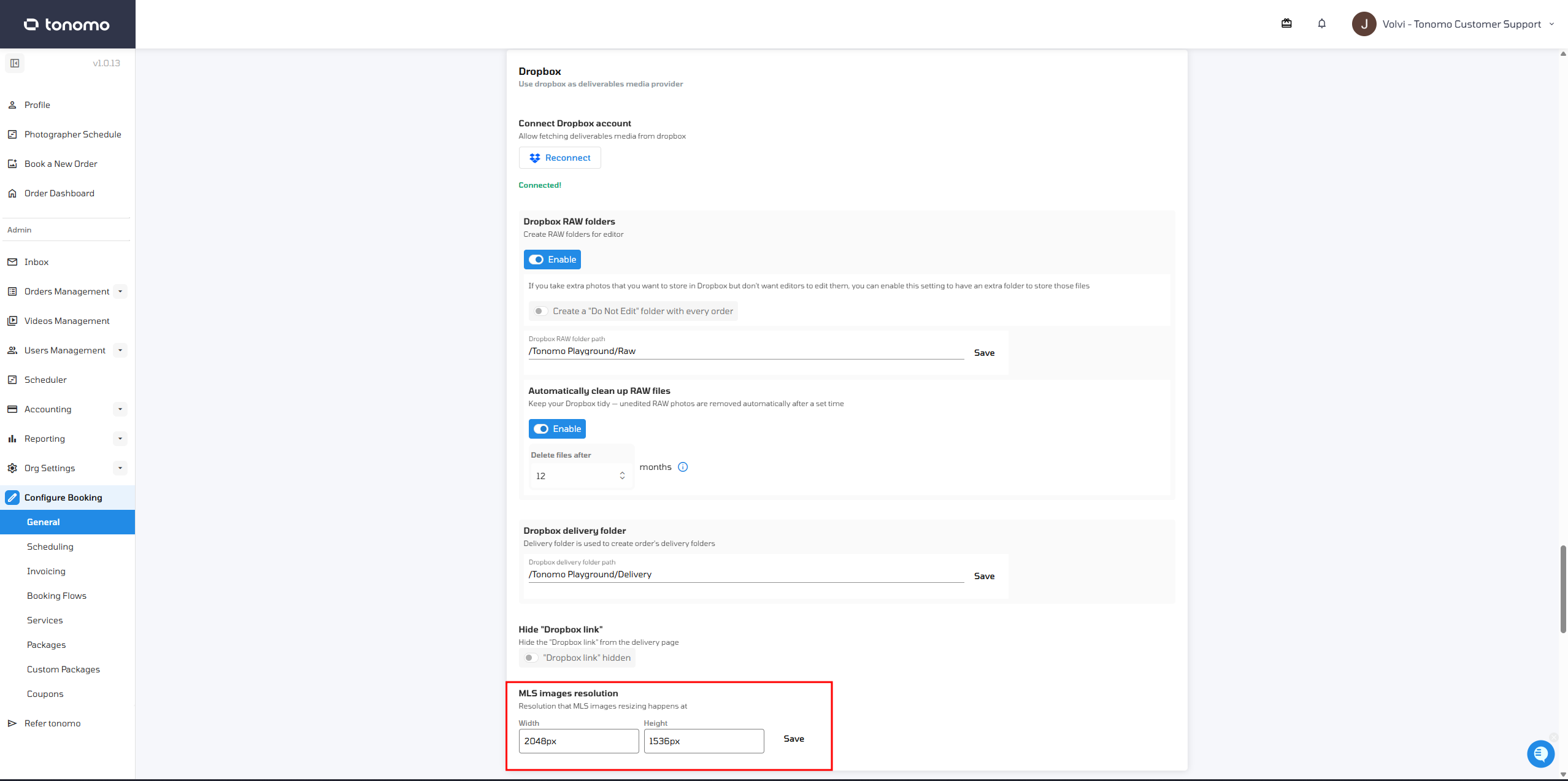
Automatically clean up RAW files
Tonomo can automatically delete RAW files from your connected Dropbox after a configurable retention period. This helps you manage storage costs without having to manually clean up large RAW files once they're no longer needed.
How to set it up:
Navigate to Configure Booking → General → Dropbox. There, you'll find the retention period setting that controls how long RAW files are kept before they're automatically removed.
Simply set the timeframe that works best for your workflow, and Tonomo will handle the rest.
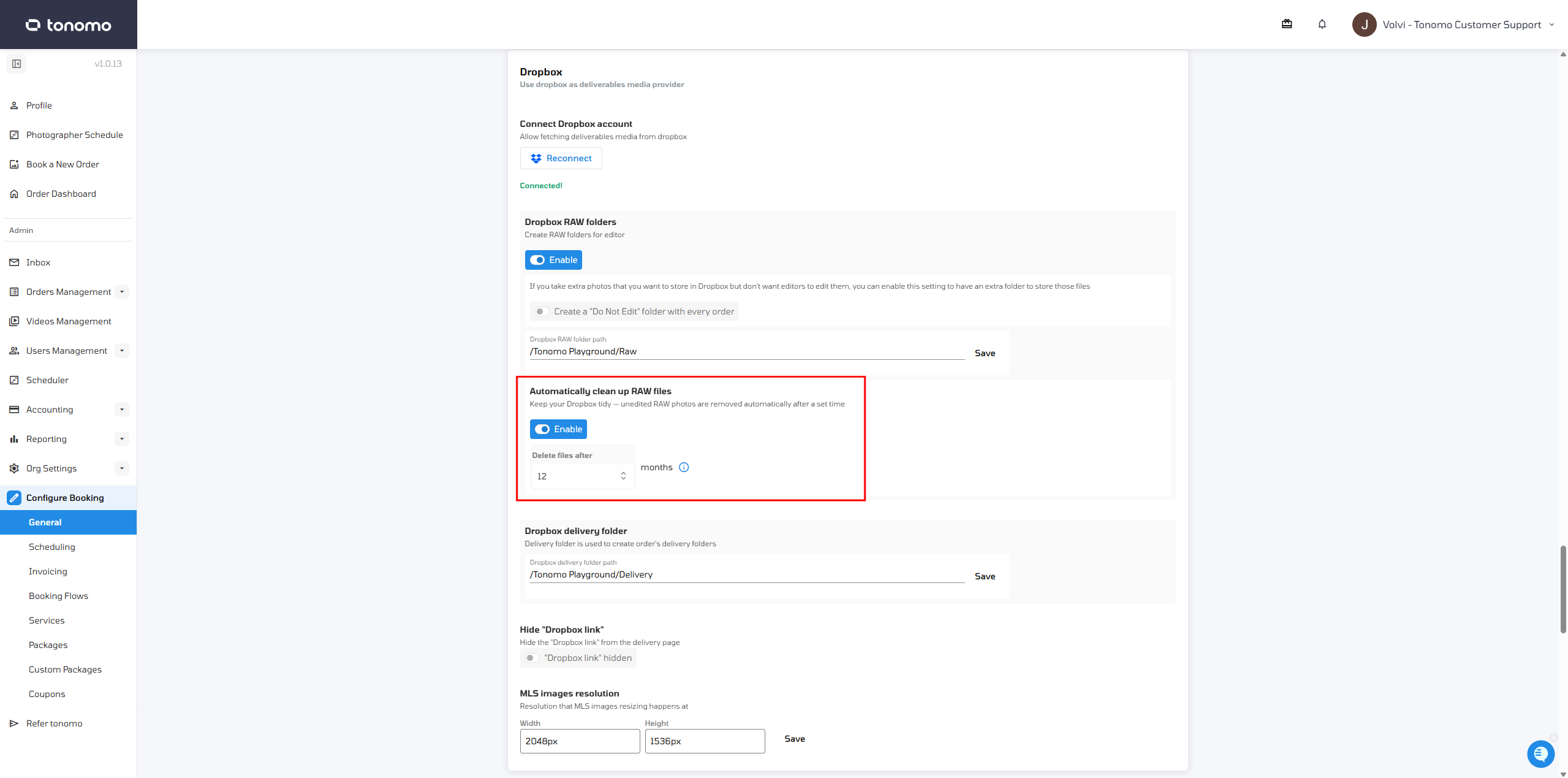
Hide Dropbox Link
Once enabled, this feature will hide the Dropbox link on the delivery page. Instead of showing the link that opens the Dropbox folder directly, your clients will only see a Download button to retrieve their files. This gives you better control over how clients access their delivered media and keeps your Dropbox folder structure private.
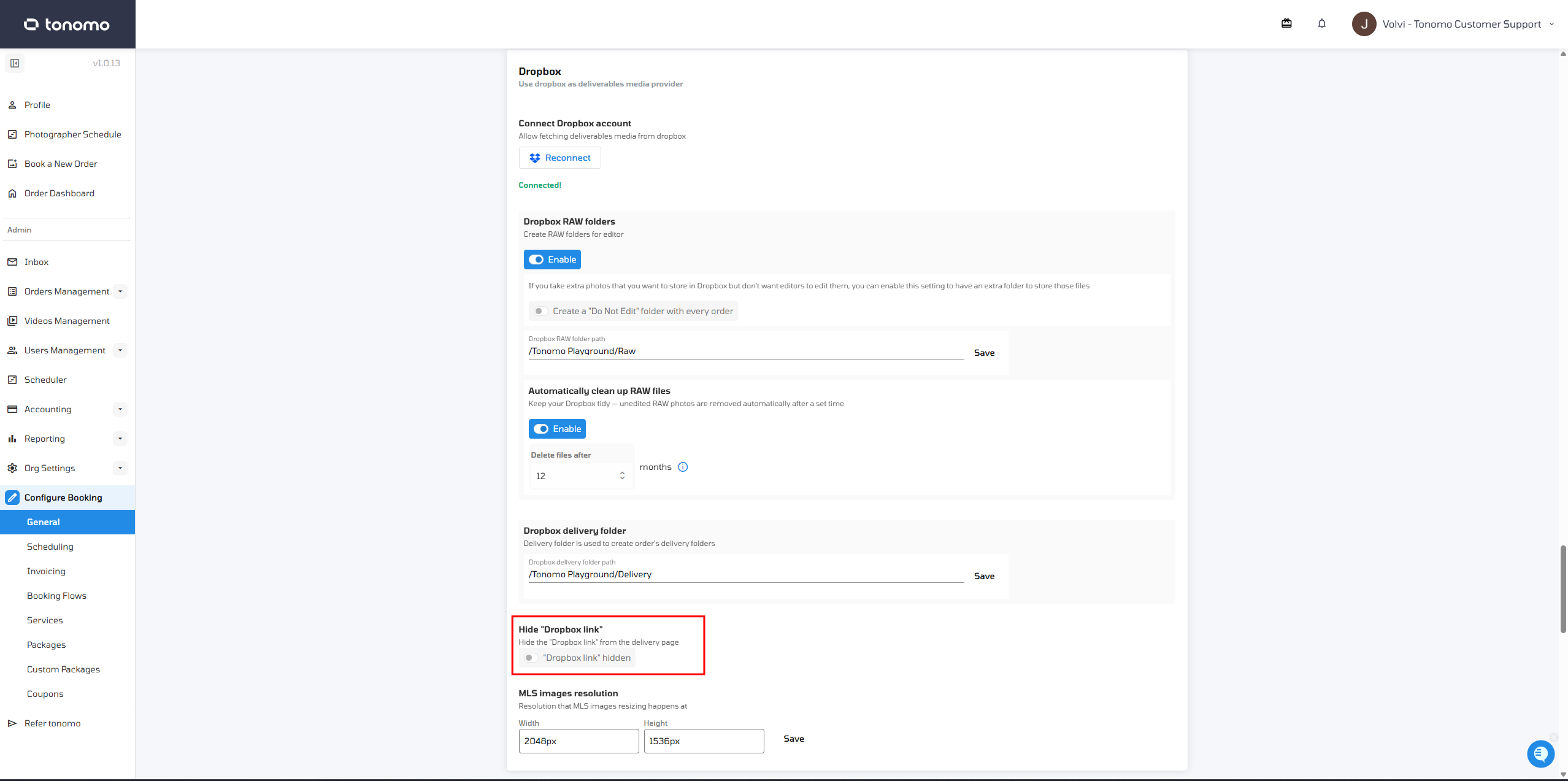
MLS Images Resolution
Tonomo automatically resizes your images when Dropbox folders are synced. The default size is 2048 × 1536 pixels, and this can be adjusted to fit your preferred dimensions. To prevent any distortion, the system always preserves the original aspect ratio of your photos when resizing.
Troubleshooting
Issue: Delivery page is stuck loading
Likely causes:
Dropbox has been disconnected, or you've connected a different account
The root folder has been renamed or deleted
How to fix:
Go to Configure Booking → General → Dropbox Section
Reconnect your Dropbox Account by clicking the Reconnect button
Please make sure that you are logged in to the correct Dropbox account
Confirm the root folder still exists with its original name
Issue: Team members can't access Dropbox files
Please see the Permissions and Sharing section above. The most common fix is to share the root folder with their email or have them use the shared admin login.
Issue: Files aren't appearing in Tonomo after upload
Likely causes:
The service doesn't have a Service Type set
The Service doesn't include the words "Photos" or "Videos"
How to fix:
Go to Configure Booking → Services and set the service type of each services
Go to the dropbox folder and add the words "Photos" or "Videos" for photo or video services
After that, try to resync the order
Issue: Plan limitations preventing sharing
If your Dropbox plan doesn't allow shared folders (Free plan has limits):
Upgrade to Dropbox Plus, Professional, or Business for unlimited sharing
Or use the shared admin login approach where everyone uses the same Dropbox account
Need More Help?
If you're still having trouble connecting or using Dropbox with Tonomo, please don't hesitate to reach out to our support team. We're happy to walk you through the setup or troubleshoot any issues.
You can reach us through:
Your private Slack channel
The chat widget on your portal
Our support email: support@tonomo.io