How Do I Set Due Date For An Order?
Last updated: October 9, 2026
A due date tells your team when an order has to be finished, so they can prioritize. In Tonomo you set it in the order's Order Details, with a time if you need one, and it appears just below the order's date. On the Orders (Beta) page you can show a Due Date column to set due dates in the list, and filter or sort by due date to see what's coming up.
At a glance
Set it in Order Details (Due Date, plus an optional Due Time), or in the Due Date column on Orders (Beta).
The Due Date column is hidden at first. Switch it on in Settings.
It shows below the order date.
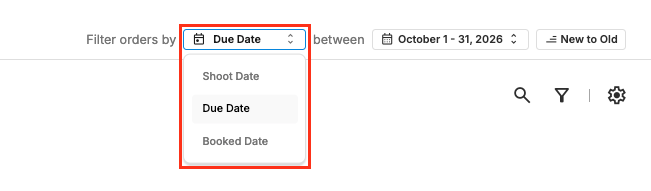
To see what's due: Filter orders by Due Date between two dates, or add the Due Date filter.
Order due dates are separate from job due dates in Jobs Management.
How do I set a due date on an order?
On Orders Management > Orders (Beta), click the order's Order ID to open Order Details.
Find Due Date and pick the date. Add a Due Time if it's due at a particular time.
The due date shows straight away, below the order date.
Can I set it from the list?
Yes. Turn on the Due Date column in Settings, then set the date right in the order's row. See How Do I Choose Which Columns Show in Order Management?
How do I see which orders are due?
On Orders (Beta):
By date range: set Filter orders by to Due Date, choose the dates (for example this week), and sort Old to New to see the most urgent first.
As a filter: add the Due Date filter alongside others, for example Team or Service.
See How Do I Filter Orders In Order Management?
Frequently asked questions
Is an order due date the same as a job due date? No. Jobs in Jobs Management have their own due dates, worked out from their job template. See When Does Tonomo Create a Job, and When Is It Due?
Who can set due dates? Admins.
Related articles