How Do I Partially Deliver an Order?
Last updated: October 14, 2026
Overview
Sometimes part of an order is ready before the rest — for example, the photos are edited and ready to go, but the editor is still working on the video. Instead of waiting for everything to finish, you can deliver the finished files right away and send the rest once they're done.
Note: You can repeat this process as many times as needed. If each service on the order has its own turnaround time, deliver each one as soon as it's ready, updating its status in Project Chat each time so you can track which services are completed and which are still pending.
Delivering Partial Files via Dropbox
In the final Dropbox folder, only include the files that are actually ready to deliver — for example, the edited photos. Don't include raw files for services that are still in progress, like unedited video footage.
Once the ready files are in the final Dropbox folder, sync the delivery files. This creates (or updates) the delivery link.
Send the delivery link to your client.
Delivering Partial Files via Tonomo's Native Upload
The process is similar if you're using Tonomo's built-in upload instead of Dropbox:
Upload only the final, edited files that are ready to deliver.
Sync the delivery files.
Send the delivery link to your client.
Updating Each Service's Status
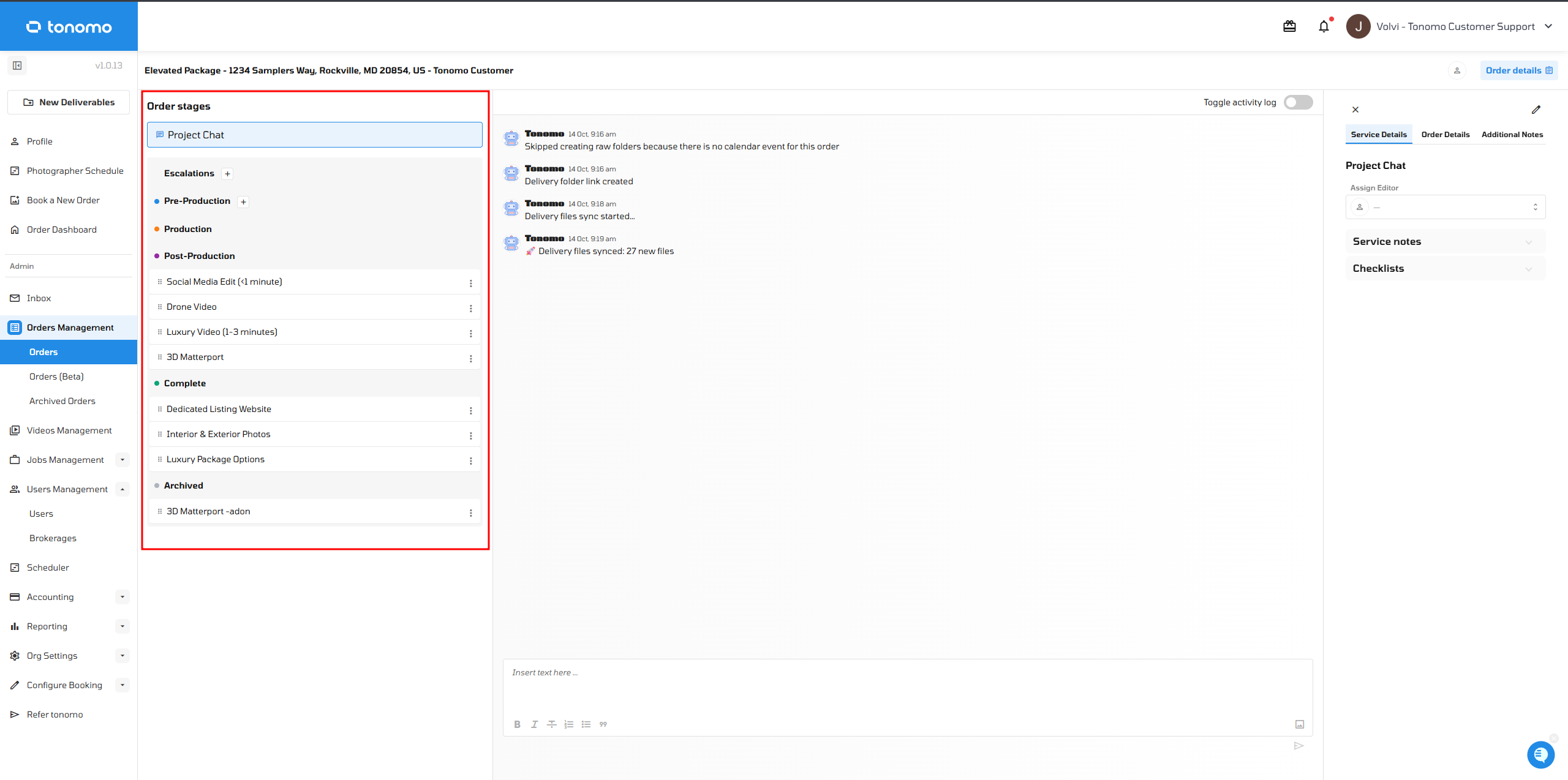
In Project Chat, update the status of each service individually to reflect what's actually ready. Move the finished service — for example, Photos — to Completed, and leave the remaining service, like Video, under Post-Production or whatever status fits where it's at.
Sending the Delivery Email
There are two ways to send the delivery email once the ready files are synced:
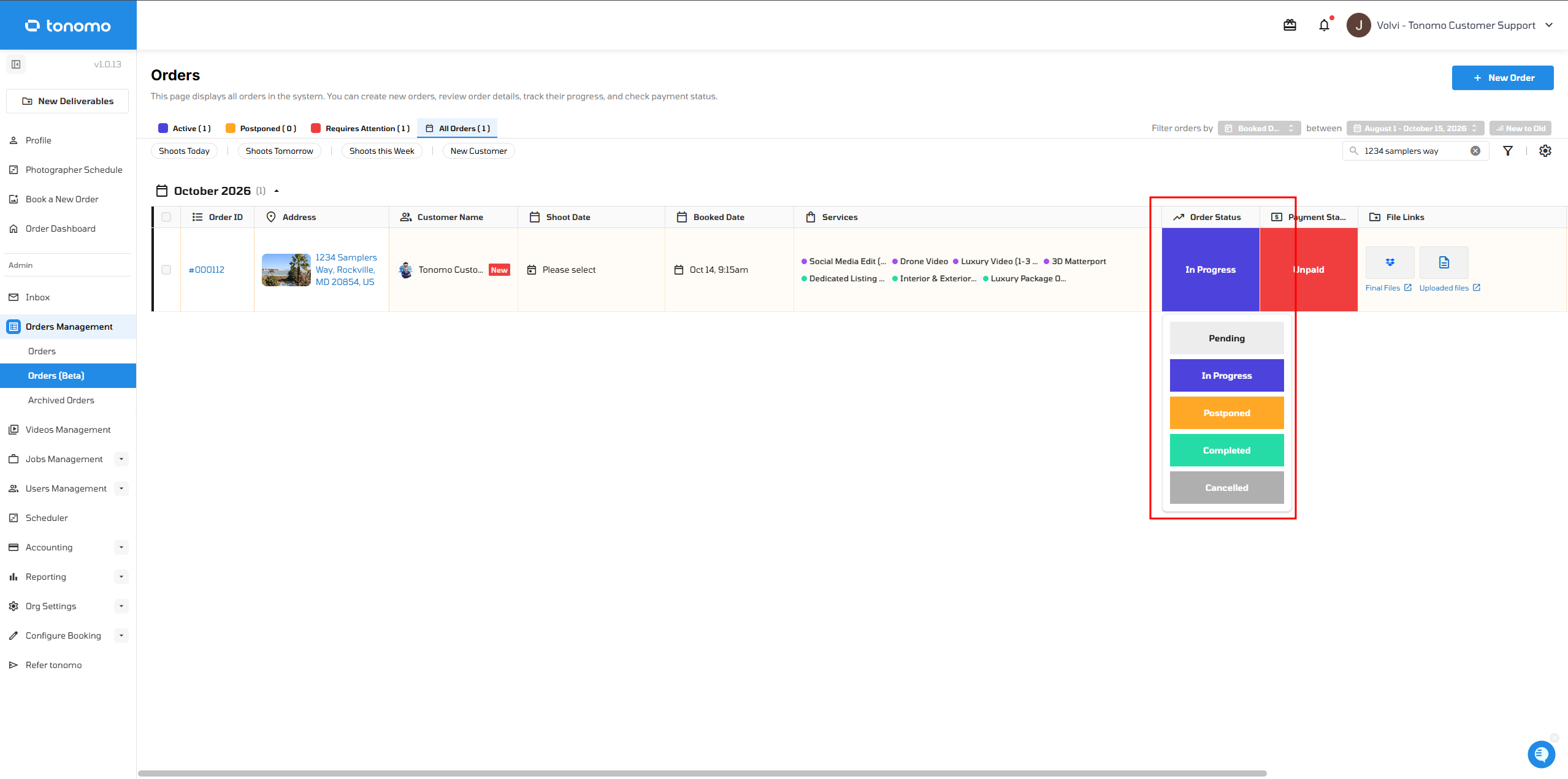
Move the order status to Completed, which sends the Project Complete email template, then move the order back to In Progress since the order isn't fully done yet.
Alternatively, open the order's Order Status popup and go to the Activity Log section. Click Send Project Complete Email to send the same email template immediately.
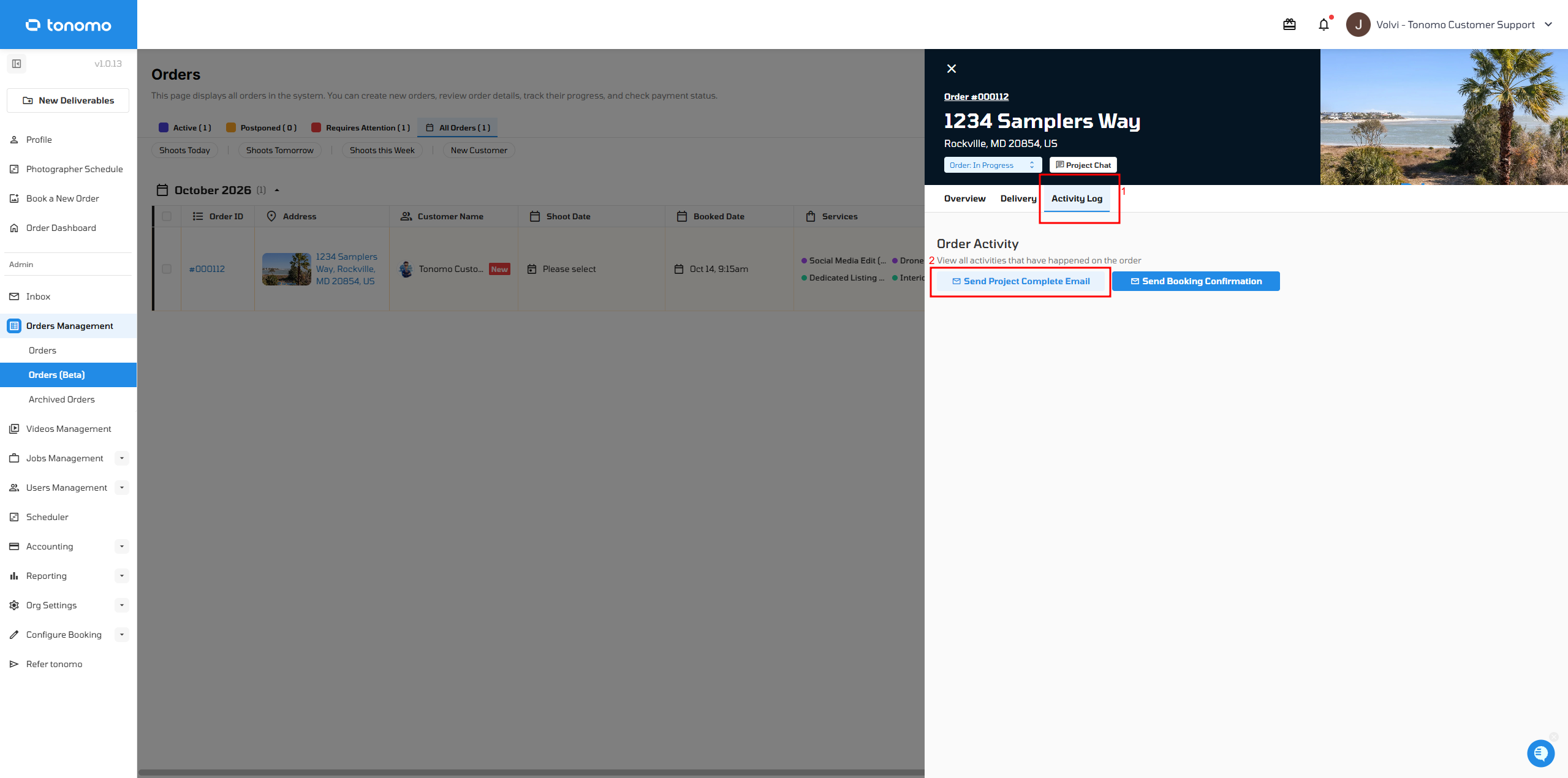
Note: The Activity Log method is usually the simpler option, since it sends the delivery email directly without needing to move the order status to Completed and then back to In Progress.
Removing Accidentally Synced Raw Files
If you accidentally synced raw files — for example, raw video footage that wasn't ready yet — you can easily remove them from the Delivery section.
Click Edit Links under the Delivery section.
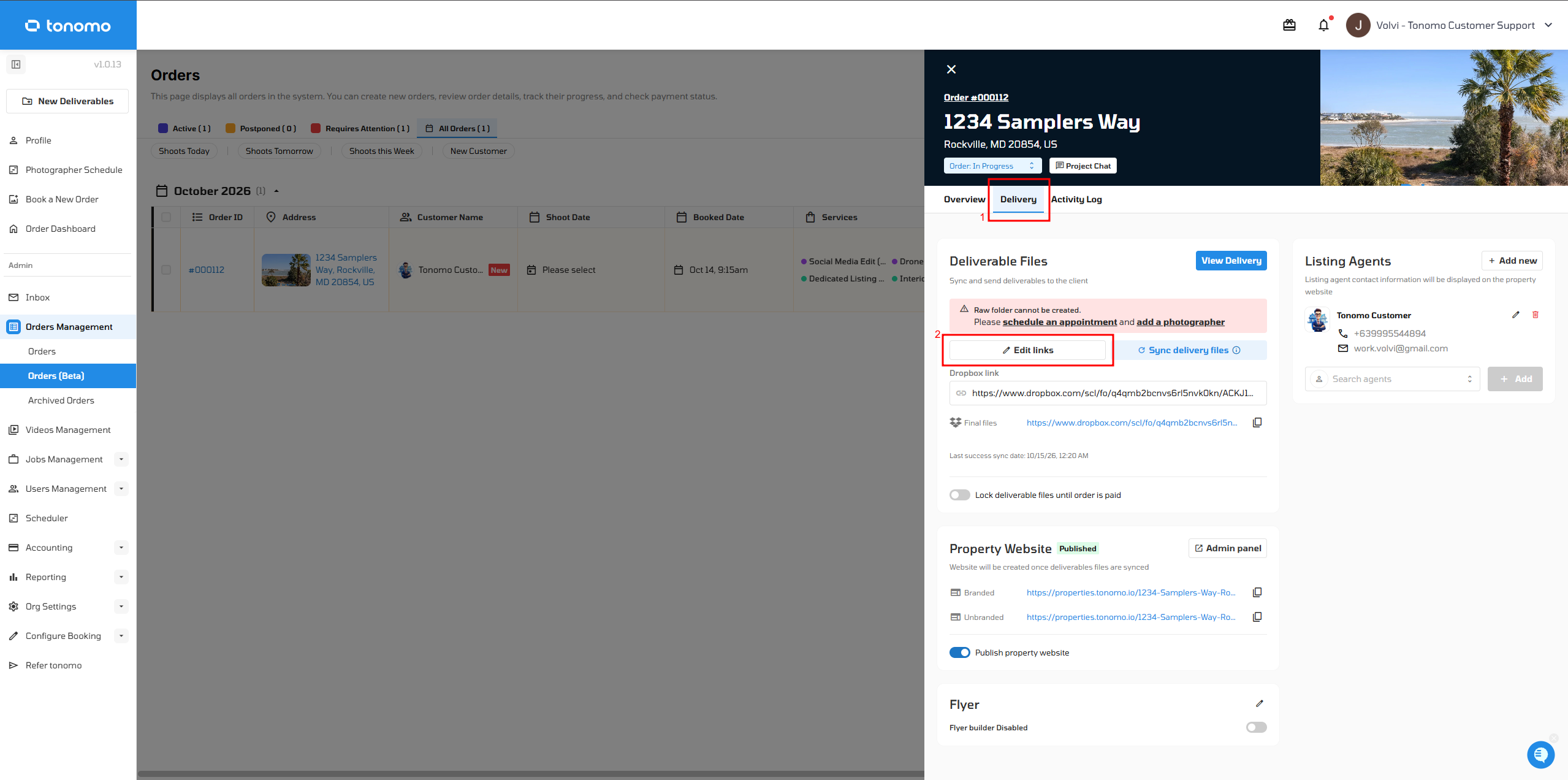
Go to the relevant file type's section (for example, "Video"), then manually delete the link to the file. Don't forget to save your changes afterwards.
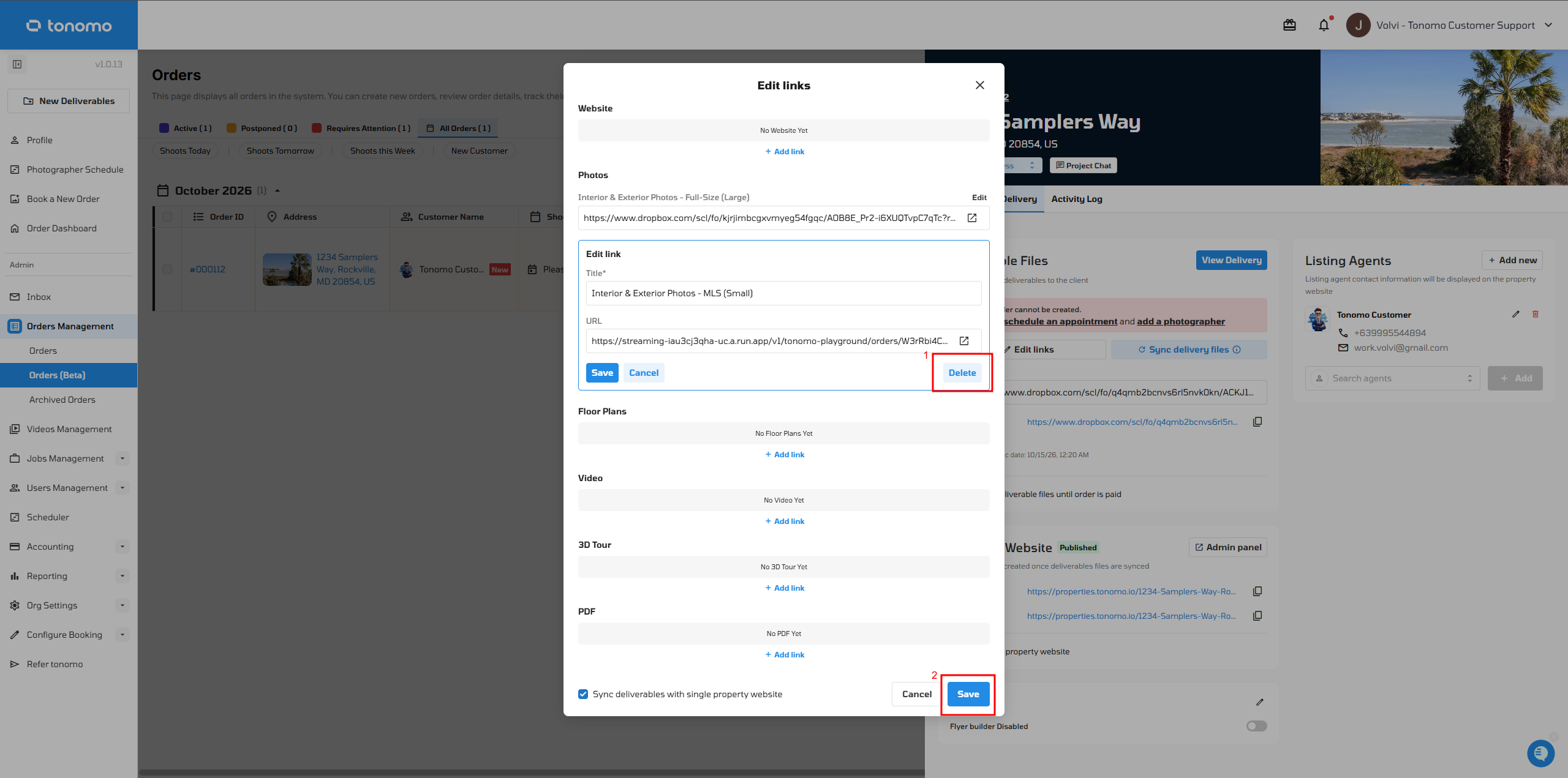
Once that's done, the file is automatically removed from your delivery page.