How Do I Add Another Appointment To An Existing Order?
Last updated: October 15, 2026
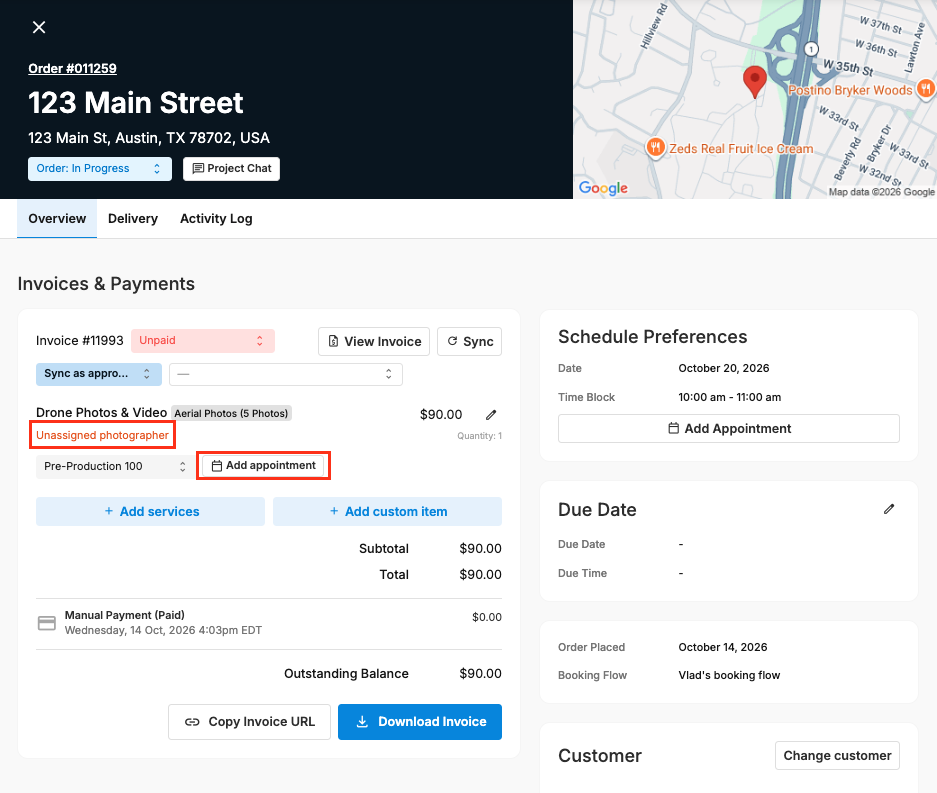
To add another shoot to an order, first add the new service to the order, then book an appointment for it in the Scheduler. This is ideal for extra work on the same property, for example, adding interior photos after a "coming soon" exterior shoot. In Order Details, click Add appointment on the new service. The Scheduler opens, and you pick the photographer and time slot.
At a glance
Step 1: add the new service in Order Details > Invoices & payments > Add services.
Step 2: click Add appointment on the service, or choose Add a new appointment... while adding it. The Scheduler opens in a new tab.
Step 3: in the Scheduler, click Add new appointment (or Schedule Appointment), pick a photographer and time, tick the service under Assign Services, then Save event.
The new appointment is part of the same order, with its own photographer, time and calendar event.
Xero / QuickBooks: Tonomo offers to resync the updated invoice. If you skip it, the invoice shows as Out of Sync until you resync.
How do I add the new service first?
Go to Orders Management > Orders (Beta) and click the order's Order ID. Order Details opens on the right.
In Invoices & payments, click Add services, pick the service, and click Save changes.
Under Select appointment, choose:
Add a new appointment... to open the Scheduler straight away, or
Not Required to book it in a moment.
Click Save.
The new service now shows Unassigned photographer in Invoices & payments.
How do I book the new appointment?
In Invoices & payments, click Add appointment on the new service. The Scheduler opens in a new tab on the order's date. (If the order has no appointments at all, use Add Appointment under Schedule Preferences.)
In the Scheduler's Order Details panel on the right, scroll down and click Add new appointment. You can also click Schedule Appointment under Services in the left panel.
In the day view, click a free time in the column of the photographer you want. Edit event opens for this order, with that photographer and start time filled in.
In Edit event:
check the Date and time and the Photographers
under Assign Services, keep the new service ticked. Services already on the first shoot show under Services With Appointment.
choose Notify participants, Send booking confirmation or Don't invite customer to calendar event
Click Save event.
The order now lists both appointments, as Appointment No.1 and Appointment No.2, and the service shows its date and photographer in Invoices & payments.
What happens with Xero or QuickBooks?
If the order's invoice was already synced to Xero or QuickBooks, adding the service changes it. Tonomo handles it like this:
When you add the service in Order Details, Invoice sync: Resync to accounting is on by default, so the updated invoice is sent straight away.
If you switch that off, the invoice is marked Out of Sync.
To resync later, open the order's Invoices & payments and click Resync at the top right of the invoice, next to View invoice. Or go to Accounting > Invoicing and use the Out of Sync tab.
To spot orders that still need syncing, switch on the Accounting Status column on Orders (Beta). It shows Synced, Manually Synced, Unsynced or Out of Sync for every order. See How Do I Check an Order's Xero or QuickBooks Sync Status?
Frequently asked questions
Do I need to add the service before the appointment? Yes. The appointment's Assign Services list only shows services already on the order.
Can the new appointment have a different photographer? Yes. Pick any photographer when you book it.
Will the travel fee change? If the new time or photographer changes the travel fee, Tonomo shows a reminder in Edit event so you can update the invoice.
Can I move a service from the first shoot to the new one? Yes. Untick it on the first appointment, then tick it on the new one. See How Do I Split Services Into Separate Appointments?
Related articles