How Do I Add a Checklist To Project Chat?
Last updated: October 14, 2026
Besides having a checklist on each service, you can add one checklist to an order's Project Chat itself, so it appears as soon as anyone opens the chat, without opening a specific service. To set it up, create a service named exactly Project Chat and add the checklist in its Task Configuration. Every order booked after that gets the checklist automatically.
At a glance
Create a service named exactly Project Chat. The spelling and capitalization must match.
Add your checklist in that service's Task Configuration.
It appears on orders booked after you create it, not on past orders.
The Project Chat service does not need to be added to any booking flow.
Good for steps that apply to every order, like Confirm access, Upload RAWs or Send delivery.
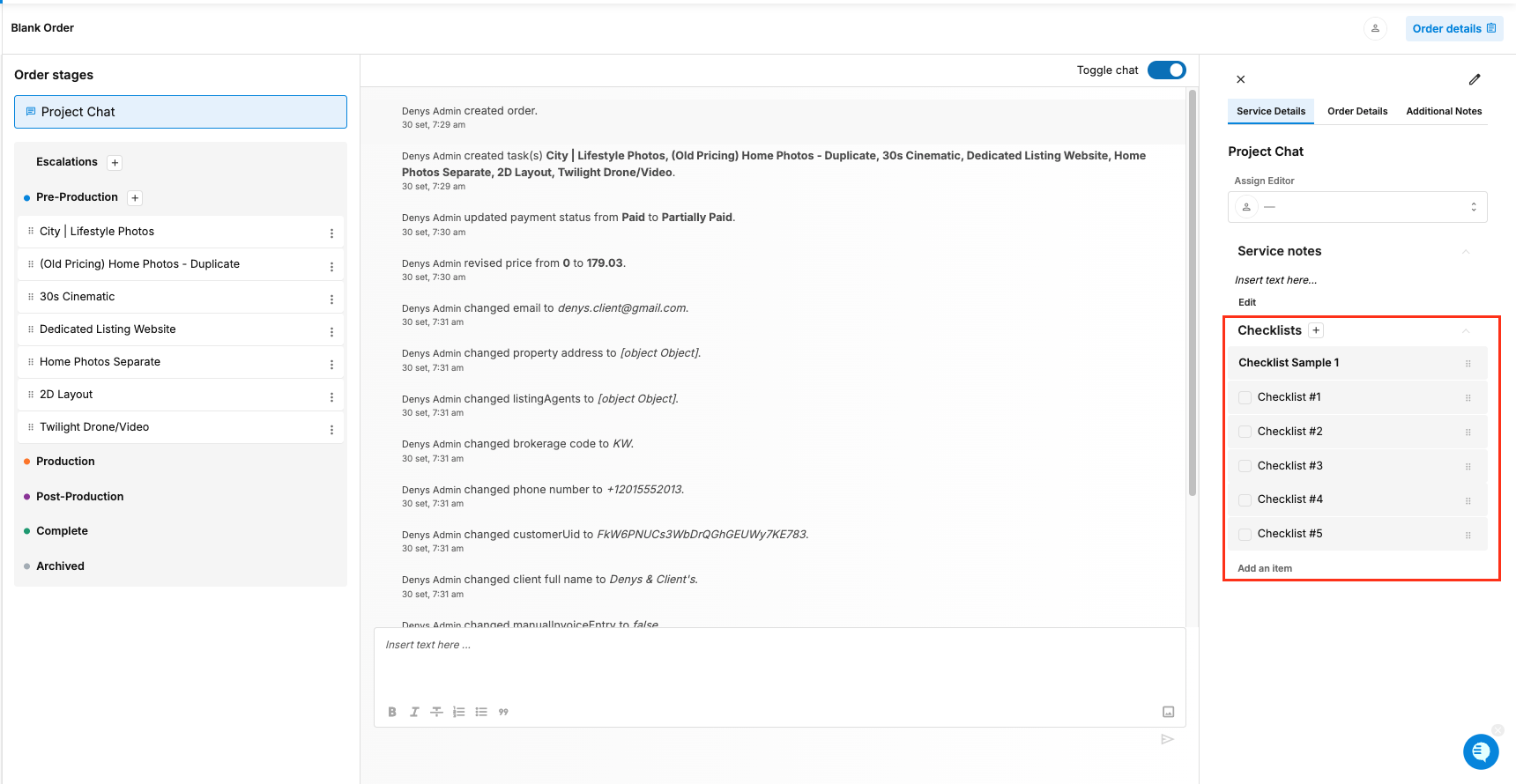
How do I create a Project Chat checklist?
Go to Configure Booking > Services and add a new service. See How Do I Set Up The Services I Offer?
Name it exactly Project Chat.
In the service's Task Configuration, add the checklist items you need.
Save.
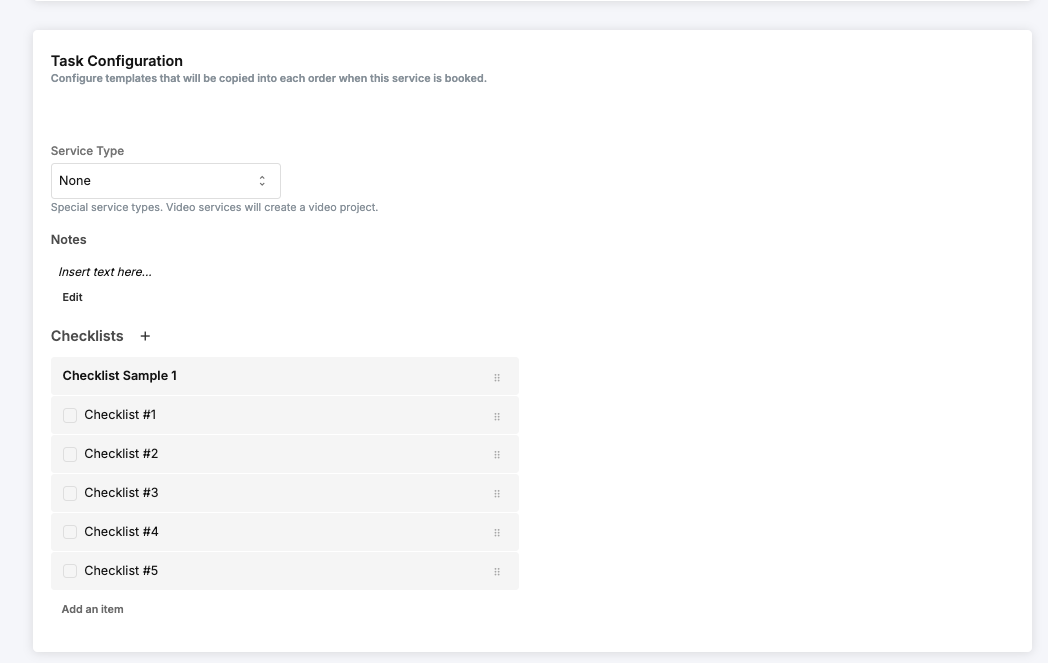
Don't add this service to a booking flow. Customers never see or book it. It only exists to hold the checklist.
Which orders get the checklist?
Only orders booked after you create the Project Chat service. Orders that already exist won't show it.
How is this different from service checklists?
Project Chat checklist | Service checklist | |
|---|---|---|
Where it appears | As soon as you open the order's Project Chat | When you open that service in Project Chat |
Best for | Steps for the whole order | Steps for one service, for example Drone permit checked for Aerial Video |
Set up on | A service named Project Chat | Each service's own Task Configuration |
Frequently asked questions
Why isn't my checklist showing? Check the service name is exactly Project Chat, and that the order was booked after you created it.
Where do I find it on an order? In Orders Management > Orders (Beta), click the order's Services to open Project Chat. The checklist is right there.
Can I edit the checklist later? Yes. Changes apply to orders booked after you edit it.
Who can tick items off? Anyone working on the order in Project Chat, for example admins and photographers.
Related articles